


General
How to Install the Firmware
2024-12-050
[How to Install the Firmware]
1. Not using the Lens Station (When connecting directly through the USB Port)
1) Required Equipment
: USB-C cable (※ For the Remaster Slim and the AF 35mm F1.4 P FE lens, please use the ´USB-A to USB-C cable´)
2) Required Software (Please download the file that matches your operating system, Mac or Windows)
: The latest Lens Manager Software [Download Link]
: USB Driver Software [Download Link]
- CP210x Windows Drivers (Windows OS)
- CP210x VCP Mac OSX Driver (Mac OS)
3) Firmware Update Process
: (1) → (5)
2. Using the Lens Station
1) Required Equipment
: Lens Station for your lens mount (Sony E / Canon EF / Canon RF / Nikon F / Fuji X)
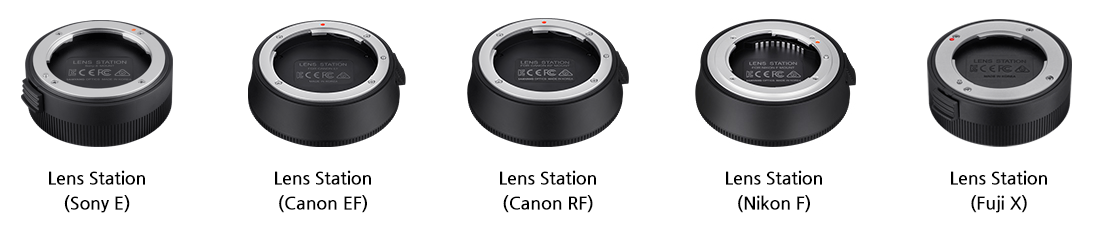
2) Required Software (Please download the file that matches your operating system, Mac or Windows)
: The latest Lens Manager Software [Download Link]
(※ USB Driver Software installation is not required)
3) Firmware Update Process
: (2) → (5)
[Firmware Update Process]
(1) Download and install the USB Driver Software.
(2) Download and install the latest version of Lens Manager Software.
(3) Connect the lens to the PC using a ´USB Port´ or ´Lens Station´.
(※ Please use the USB-A to USB-C cable when using the USB Port on the Remaster Slim or the AF 35mm F1.4 P FE lens)
(4) Launch Lens Manager Software.
(5) Follow the prompts for automatic updates.
(※ If updating manually, firmware in the F/W ´update´ menu to proceed)
If you have any technical issues or trouble installing the firmware, please email ´service@lksamyang.co.kr´ and send the screengrab of the issue.
Thank you!
[Related Notice] How to Identify Firmware Files Types: 0, A, B
[Related Notice] How to Recover Update Process in Case of Error
[Related FAQ] How to Firmware Update on the AF 35-150mm F2-2.8 L (L-mount)