|
LK SAMYANG Lens Profiles Guide & Installation To improve the user experience of installing Samyang Lens Profiles (LCP)—which automatically correct distortion and vignetting in software such as Adobe Lightroom and Photoshop (Adobe Camera Raw) we are pleased to introduce a dedicated all-in-one installer. Previously, users had to locate hidden system folders or navigate complex directory paths to copy profile files manually. With this new dedicated installer, all profiles can now be easily installed with just a single run of the program. [Key Features & Improvements]
1. One-Click Automatic Installation No need to search for complex system paths—simply run the installer, and all profiles will be automatically placed into the correct directories.
2. All-in-One Support for All Models Profiles for all currently released Samyang lenses are applied at once in a single installation.
3. Easy Uninstallation If no longer needed, profiles can be cleanly and effortlessly removed through your system's Add/Remove Programs (Control Panel).
4.Continuous Updates for New Lenses As new lenses are released, they will be included in subsequent installer version updates to ensure ongoing support. We remain committed to continuously improving our software and services to provide you with a smoother, more convenient shooting and editing experience. Thank you.
Supported Lens Profiles (16 Models)
· Sony FE Mount (AF Series – 14 Models)
· AF 16mm F2.8 P FE
· AF 24mm F1.8 FE
· AF 35mm F1.8 P FE
· AF 85mm F1.8 P FE
· AF 14-24mm F2.8 FE
· AF 24-60mm F2.8 FE
· AF 35-150mm F2-2.8 FE
· AF 60-180mm F2.8 FE
· V-AF 20mm T1.9 FE
· V-AF 24mm T1.9 FE
· V-AF 35mm T1.9 FE
· V-AF 45mm T1.9 FE
· V-AF 75mm T1.9 FE
· V-AF 100mm T2.3 FE
· L-Mount (AF Series - 2 Models)
· AF 35-150mm F2.0-2.8 L
· AF 60-180mm F2.8 L
Windows Installation Guide
· Supported OS: Windows 10 / 11 (64-bit)
· Compatible Software: Adobe Lightroom, Lightroom Classic, Camera Raw (Photoshop)
· Installation Steps:
1. Download and run LK_SAMYANG_Lens_Profiles_Setup.exe.
2. Follow the setup wizard and click [Next] ➔ [Install].
3. Once installation is complete, completely restart any running Adobe applications.
· How to Apply in Lightroom:
1. Open a supported RAW image file (.ARW, .DNG, etc.).
2. In the Develop module or Optics panel, check [Enable Profile Corrections] (or toggle on [Enable Lens Profile]).
3. The correct LK SAMYANG lens profile will be automatically detected and applied based on the image's EXIF data.
(※ If manual selection is required, choose Samyang from the Make dropdown menu.)
· Troubleshooting:
1. Browser Download Warning: Click [...] ➔ [Keep] ➔ [Show more] ➔ [Keep anyway].
2. Windows SmartScreen Alert: Click [More info] on the blue banner, then click [Run anyway].
3. Profile Not Showing: Adobe automatically filters out RAW-calibrated lens profiles when viewing standard JPEG or HEIC images. Please ensure you are viewing an uncompressed RAW file.
· Uninstallation:
1. Navigate to Windows [Settings] ➔ [Apps] ➔ [Installed apps], find LK SAMYANG Lens Profiles, and click [Uninstall].
macOS Installation Guide
· Supported OS: macOS 10.15 Catalina or later (Fully supports Apple Silicon M-series & Intel)
· Compatible Software: Adobe Lightroom, Lightroom Classic, Camera Raw (Photoshop)
· Installation Steps:
1. Download and double-click LK_SAMYANG_Lens_Profiles.pkg.
2. Click [Continue] ➔ [Install] and authenticate with your Mac administrator password (or Touch ID).
3. Once installed, completely quit any running Adobe applications (Command + Q) and relaunch them.
· How to Apply in Lightroom:
1. Open a supported RAW image file (.ARW, .DNG, etc.).
2. In the Develop module or Optics panel, check [Enable Profile Corrections] (or toggle on [Enable Lens Profile]).
3. The correct LK SAMYANG lens profile will be automatically detected and applied based on the image's EXIF data.
(※ If manual selection is required, choose Samyang from the Make dropdown menu.)
· Troubleshooting:
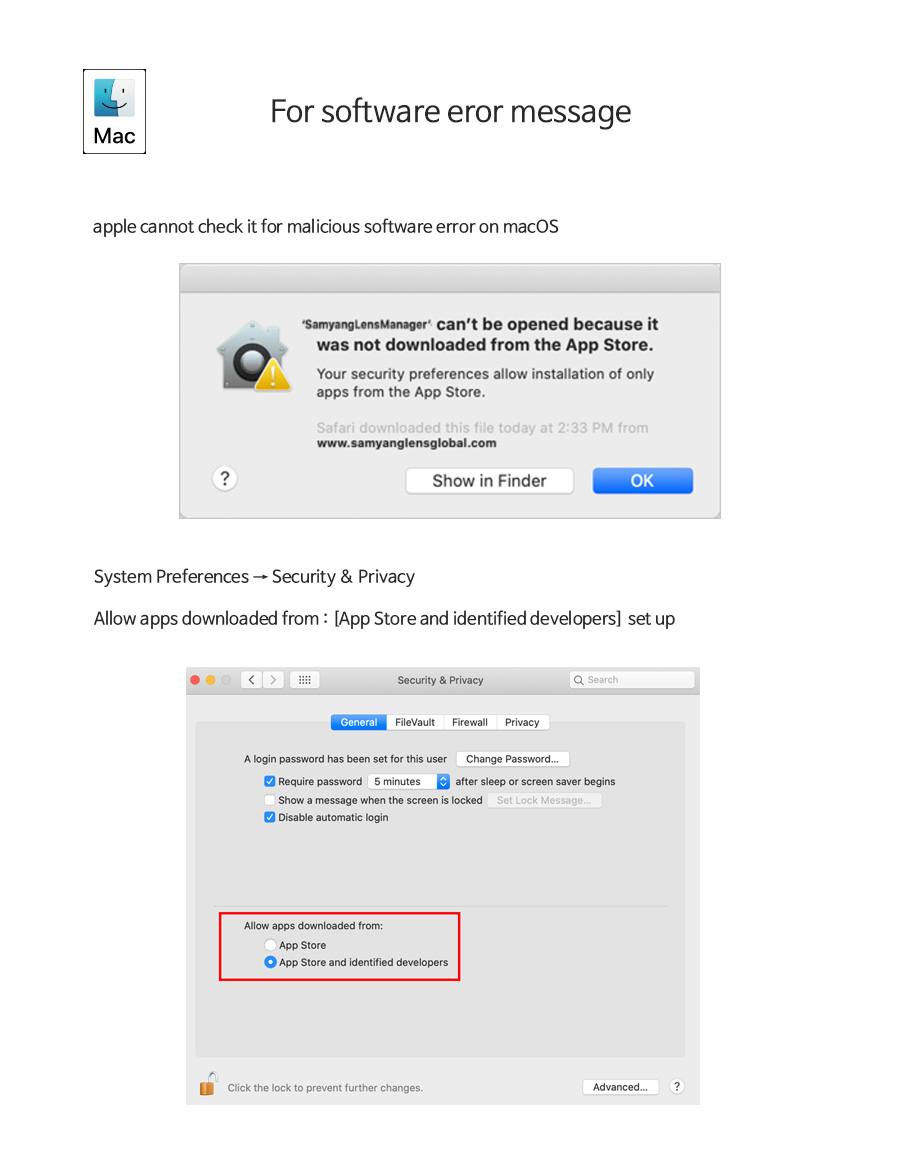
1. Gatekeeper Alert ("Unidentified Developer"): Right-click (or Control-click) the .pkg file ➔ Select [Open] ➔ Click [Open] on the dialog. (Or go to [System Settings] ➔ [Privacy & Security] and click [Open Anyway].)
2. App Quit Requirement: Closing the window with the red (X) button does not fully quit macOS applications. Press Command(⌘) + Q to terminate Lightroom/Photoshop completely so the profile database is refreshed upon reboot.
3. Profile Not Showing: Lens profiles will not appear when opening JPEG or HEIC files. Please check using a RAW image.
· Uninstallation:
1. Double-click the included LK_SAMYANG_Lens_Profiles_Uninstaller.app and [Uninstall] to cleanly remove all profiles from both system and user directories.
|